
Download ExtremeCopy – High-Speed File Transfer, Bulk Copy Tool, Productivity Utility
Overview
ExtremeCopy is a specialized utility designed to optimize file transfer operations on Windows systems, addressing the limitations of default copy and paste functions. The app targets users who frequently manage large files or perform bulk data transfers, offering a faster, more efficient alternative to standard Windows file operations. By enhancing transfer speeds, ExtremeCopy helps reduce wait times during data migration, backups, or media file organization. It is particularly beneficial for professionals in creative fields, IT administrators, and power users who handle extensive file sets regularly.
The application operates through seamless integration with the Windows contextual menu, enabling direct access without requiring a standalone interface. This design choice emphasizes efficiency and minimal disruption, allowing users to initiate transfers with a single right-click. The developer did not provide additional technical details about the underlying technology or performance benchmarks. However, the app’s core purpose remains clear: to improve the speed and reliability of file copying tasks.
Real-world use cases include transferring large video projects between drives, migrating entire project folders between computers, and backing up extensive document libraries. In the broader app ecosystem, ExtremeCopy fills a niche for high-performance file utilities, offering a lightweight yet effective solution where standard tools fall short. Despite being released in 2017, its functionality remains relevant for users seeking a no-frills, high-speed transfer tool.
Key Features & Functionality
- High-Speed File Transfers: ExtremeCopy accelerates copy and paste operations beyond default Windows performance, reducing transfer times for large files and bulk data sets.
- Free Version with Full Functionality: The free version offers identical capabilities to the paid version, enabling users to test the tool without cost or feature restrictions.
- Contextual Menu Integration: Users can initiate transfers directly from the right-click menu, eliminating the need to open a separate application window.
- Multi-File and Multi-Folder Support: The app handles simultaneous transfers of numerous files and directories, ideal for large-scale data organization or migration tasks.
- Minimal User Learning Curve: Designed for seamless use, the tool requires no advanced configuration, making it accessible to non-technical users.
For example, a video editor transferring a 50GB project folder between external drives can initiate the process via the contextual menu, avoiding the overhead of launching a separate app. Similarly, an IT technician managing data backups across multiple machines can use ExtremeCopy to streamline repetitive tasks. The absence of a dedicated interface ensures that the tool remains unobtrusive, operating efficiently in the background while maintaining user control.
Interface, UX & Performance
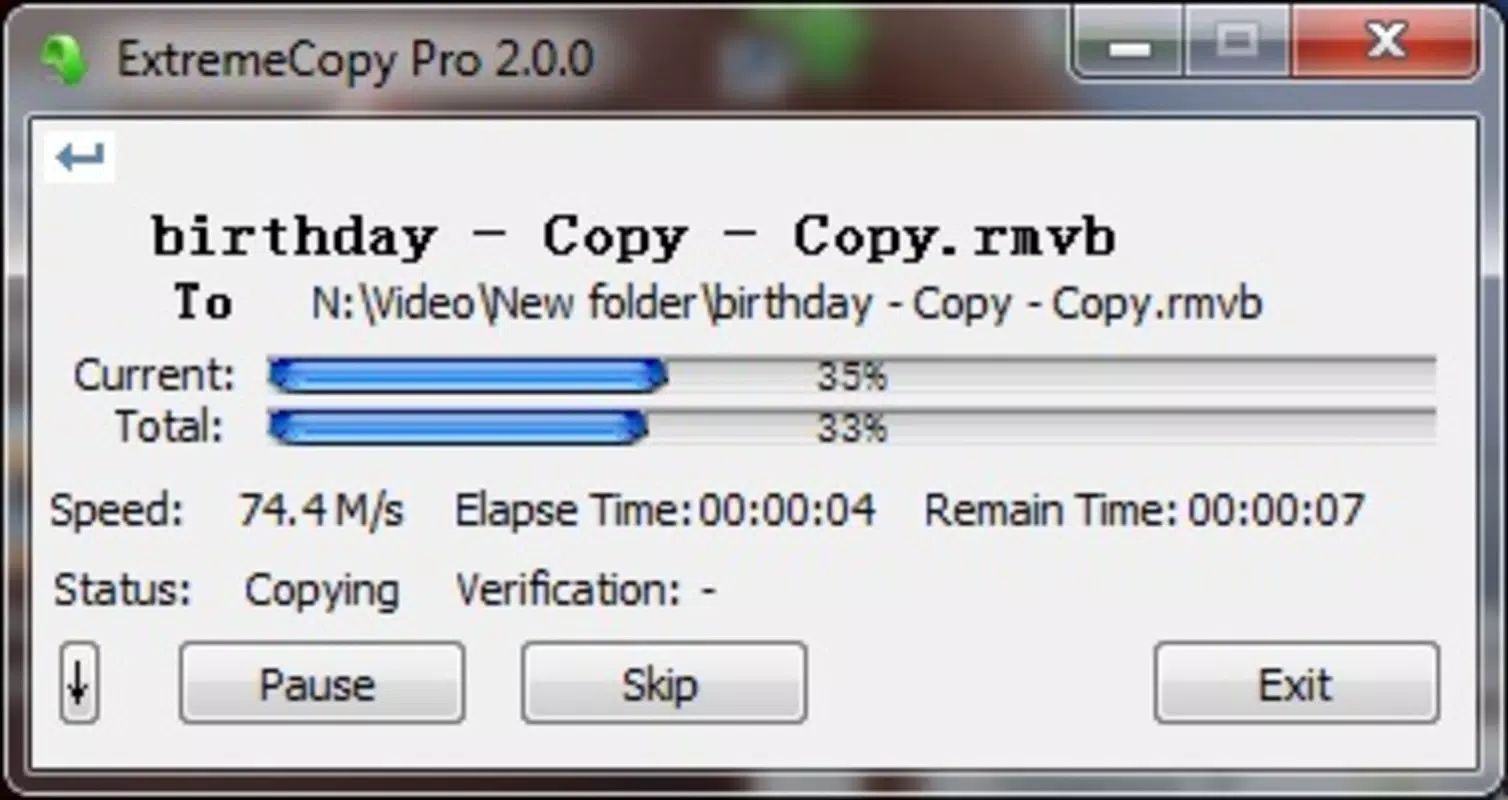
ExtremeCopy features a minimalist interface approach—specifically, it does not include a standalone window in its free version. This design prioritizes speed and integration over visual presentation. Users interact with the tool exclusively through the Windows contextual menu, which ensures a consistent experience across systems.
The navigation flow is straightforward: right-click on a file or folder, select the ExtremeCopy option, and initiate the transfer. This direct method reduces steps and avoids context switching, contributing to a smooth user experience. Although the developer did not list formal performance metrics, the app’s focus on speed suggests optimized data handling routines.
Performance across device categories is not specified. However, the tool’s lightweight nature implies compatibility with a broad range of Windows systems, including older hardware. Responsiveness appears to be a key strength, as the app operates without visible lag during transfers. Stability is implied through its long-standing presence since 2017, though no formal reliability reports were provided.
Platform Compatibility & Technical Requirements
ExtremeCopy is designed for the Windows operating system. The app supports Windows platforms, though specific OS versions were not listed. The file size of the application is not disclosed, and no additional technical specifications were provided by the developer.
The developer did not specify minimum OS requirements, nor did they detail compatibility with newer Windows releases such as Windows 11. Users should exercise caution when installing on updated systems, as older utilities may encounter compatibility issues. The lack of version-specific details makes it difficult to assess support for modern Windows features like enhanced security protocols or file system optimizations.
Pros and Cons
Pros
- Significantly faster file transfer speeds compared to default Windows operations.
- Free version includes all core functionality, allowing risk-free testing.
- Seamless integration with the Windows contextual menu for instant access.
- Supports bulk transfers of multiple files and folders simultaneously.
- Minimal system resource usage and no need for a dedicated interface window.
Cons
- No standalone interface in the free version, which may limit visibility during transfers.
- Developer did not provide detailed performance benchmarks or technical specifications.
- Compatibility with newer Windows versions was not confirmed.
- Limited user feedback or documentation available from the developer.
- No visible progress tracking or transfer status indicators in the free version.
FAQ
Is ExtremeCopy safe to download and use?
Yes, ExtremeCopy is designed as a legitimate file transfer utility for Windows. However, users should ensure they download it from trusted sources to avoid potential security risks.
Can I use ExtremeCopy on Windows 11?
While the app was released in 2017, compatibility with Windows 11 is not officially confirmed. Users may need to test the application on their system to verify functionality.
Is the free version truly full-featured?
Yes, according to the developer, the free version provides the same core functionality as the paid version, including high-speed transfers and contextual menu access.
Do I need to install a separate app window?
No. The free version operates without a standalone interface. All actions are initiated through the Windows right-click menu.
How do I update ExtremeCopy?
Updates are not publicly documented. Users should check the official source or developer website for the latest version and installation instructions.
Final Thoughts
ExtremeCopy stands out as a focused, high-performance tool for users who prioritize speed and efficiency in file management. Its ability to accelerate transfers without requiring a dedicated interface makes it ideal for power users and professionals handling large data sets. While the lack of a visible interface may be a drawback for some, the contextual menu integration ensures seamless access and minimal disruption.
Despite its age, the app remains functional and relevant, particularly for those seeking a no-cost solution to improve Windows file operations. The free version’s full feature set removes financial barriers to adoption, making it a compelling choice for both casual and advanced users.
For anyone tired of waiting for slow file copies, ExtremeCopy offers a practical, no-frills upgrade to standard Windows behavior. If you regularly move large files or manage bulk data, this utility delivers tangible benefits with minimal setup.
Download ExtremeCopy now


